Recently, we upgraded our Google Chrome into Version 65.0.3325.146 and suddenly all the quick create forms are not working properly anymore but it is working with other browsers.
We tried to clear cache , disabled all JS, unfortunately the luck is not with us.
After spent some time to debug using F12, it seems that "mscrm-globalqc-iframe" is not having correct value while compare to other browser.
So temporary you can use below code until the future update. But please note that, the below code is unsupported, use it at your own risk.
If you decided to do it, Register the below function via on load event in all the quick create form.
Else temporary advice your user to use other browsers first.
Sample Code
function QuickCreateFix()
{
var isChrome = !!window.chrome && !!window.chrome.webstore;
if (isChrome)
{
if (window.top.document.getElementsByClassName("mscrm-globalqc-iframe")[0].style.height == "0px")
{
window.top.document.getElementsByClassName("mscrm-globalqc-iframe")[0].style.height = "160px";
}
}
}
A simple guy who live in Malaysia. Passionate in doing Microsoft Dynamics 365 - CRM.
Featured Post
Dynamics 365 - Business Process Flow and Things to take note before you upgrade into Dynamics 365.
In 2 months ago, my company decided to upgrade the Dynamics CRM 2016 into Dynamics 365 and there is something different about Dynamics 365 B...
Tuesday, March 27, 2018
Tuesday, February 20, 2018
Dynamics 365 : Hide Insert Article button in Email
Recently, my company decided not to use Article anymore, and they found that it is annoying to see the button inside the email.
Solution
1. Remove Read Privilege.
Solution
1. Remove Read Privilege.
Results
After granted back Read privilege.
Reminder
Please note that with this setting, user cannot use article feature in everywhere.
Happy 365-Ing
Tuesday, February 6, 2018
Dynamics 365 : Account cannot be merged ?
Recently, my client hit an error when they want to merge two accounts due to duplication.
Unfortunately, system throw them an error stated "These record cannot be merged. One or both of these records was deactivated and cannot be edited.".
Demo
1. Two account : 1 Active and 1 Inactive
2. Two account : both are Active
Root Cause
- one of the account was deactivated.
Solution
- Make sure both records are in "Active" Status.
Happy 365-ing.
Unfortunately, system throw them an error stated "These record cannot be merged. One or both of these records was deactivated and cannot be edited.".
Demo
1. Two account : 1 Active and 1 Inactive
Result
2. Two account : both are Active
Result
Root Cause
- one of the account was deactivated.
Solution
- Make sure both records are in "Active" Status.
Happy 365-ing.
Monday, January 29, 2018
Dynamics 365 : Unrecognized Guid format
Recently, my client hit an error while opening a record, the form doesn't rendered anything, it totally a blank page.
After turn on the tracing, the log file show us a very weird error message "Unrecognized Guid format".
we search through everything, but unfortunately those solution didn't help us.
After that, we found out the similarity between the records, it is under a deactivated Business process flow. We tried to reactivated it, but it thrown us an error message.
It seems that there is something wrong with the BPF. So we decided to investigate deeply.
One of the step is missing, it became "Record" instead of the field we selected before. So after we choose back the correct field and save. The User is able to Open the record again.
Solution
- Remove the "Record field" or Choose a correct field.
I hope this will save you some time and Happy 365-ing.
Wednesday, January 3, 2018
Dynamics 365 : Get Entity Relationship using SQL Query
Recently, i got informed by my client, they need to do some clean up for the relationship between entities.
Thus, I have to generate the excel file and show to my client but as we all know there is no out of box feature to generate the relationship excel file. So, there are few ways to generate it.
- Third party tool
- XRM Tool Box
- I don't want to rely on Third party tool. - Manually copy the relationship
- Time consuming and sounds ridiculous.
Thus I decided to generate the relationship using SQL Query .
DEMO
- Open up The SQL management studio.
- Download the script from HERE.
- Copy and paste the script.
- Change the Entity Logical Name to suit your need.
RESULT
Save the result as CSV file.
I hope this will save your some time when it is your turn. Happy 365-ing.
Friday, December 29, 2017
Dynamics 365 : New Enhancements for Report in V9.0
With Dynamics 365 V9.0, Reports have now becoming more powerful.
You are now able to generate the report into 9 formats.
Report Format
1. Word
2. Excel
3. Power Point
4. PDF
5. TIFF File
6. MHTML
7. CSV
8. XML file with report data
9. Data Feed
Report Print Option
Now user can print the report into different page size and orientation.
After you clicked on Print, a screen will pop up and now you are ready to print the file.
You are allowed to generate it as PDF after you clicked on Print
With these enhancements, users can reduce number of clicks to generate the report into desire format especially power point which my client always requested for presentation purpose.
Happy 365-ing.
Thursday, December 28, 2017
Dynamics 365 :The user authentication passed to the platform is not valid
Recently, A message "the user authentication passed to the platform is not valid" was thrown while opening the report in CRM.
I have no idea what is going on, thus i turned on the CRM tracing and i found that the was something wrong with Report server.
Solution
1. Open Reporting Services Configuration Manager, and the service was stopped.
I have no idea what is going on, thus i turned on the CRM tracing and i found that the was something wrong with Report server.
Solution
1. Open Reporting Services Configuration Manager, and the service was stopped.
2. After some investigation, finally i found out the reason , it was because AD team changed the admin password without informing us.
3. Reactivate the Service and changed the password for Service Account
4. Result
I hope this will save you some time and understand the reason behind it. Happy CRM-ing.
Thursday, December 7, 2017
Dynamics 365 : Hit Object address not found on party or party is marked as non-emailable
Recently in my own CRM environment, i hit 1 error when trying to send an email to customer.
DEMO
1. When a case created, i would like to send an email to customer but in the end i got this error.
2. Based on the provided log, i went for a check. unfortunately, the email is allow for this customer.
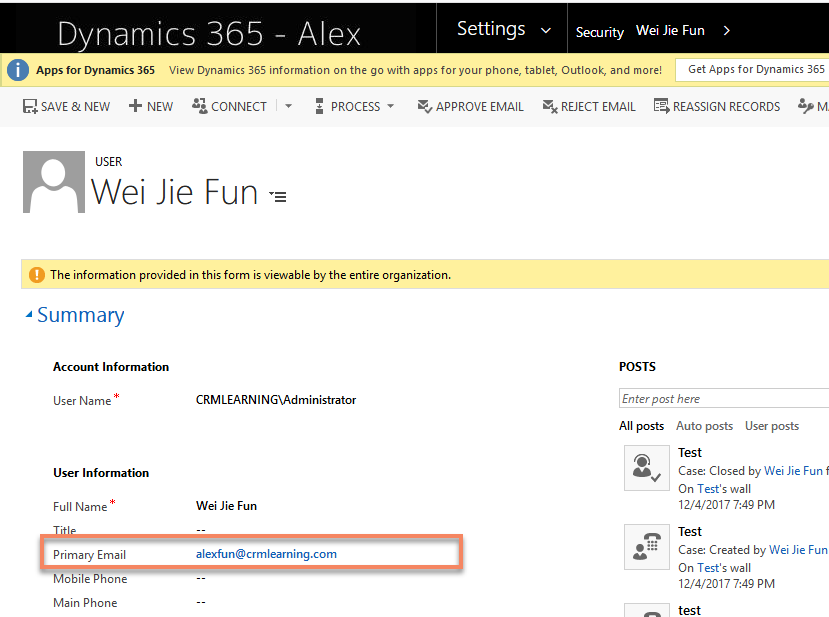
3. Thus, i went to user 's record (Sender) and i found that the email value is not exist.
Solution
1. Provide valid email to sender and receiver.
2. Make sure the email is marked as allow in receiver's record.
3. Once everything is provided correctly like pictures below. You should able to send an email successfully.
Sender
Receiver
Final Result
I hope this will save you some time and understand the reason behind it. Happy 365-ing.
Thursday, November 16, 2017
Dynamics 365 : Access Team in SQL
Few months ago, my team and I implemented a plugin, based on certain conditions, the plugin will add or remove users from access team.
Today, we've found out the plugin was not working properly after upgraded to Dynamics 365. Thus , we have to fix it.
We decided to retrieve all the affected records and access team members but it is not easily to retrieve the records through advanced find. So, we have to write the sql query to generate the list.
DEMO
SELECT o.Name , t.Name AS TeamName, u.FirstName, u.LastName, tt.TeamTemplateName
FROM filteredopportunity AS o INNER JOIN
PrincipalObjectAccess AS poa ON o.opportunityid = poa.ObjectId INNER JOIN
TeamBase AS t ON poa.PrincipalId = t.TeamId INNER JOIN
TeamMembership AS tm ON t.TeamId = tm.TeamId INNER JOIN
SystemUser AS u ON tm.SystemUserId = u.SystemUserId INNER JOIN
TeamTemplate AS tt ON t.TeamTemplateId = tt.TeamTemplateId
WHERE (o.name = 'test 1')
I hope this will save you some time and Happy CRM-ing.
Wednesday, November 15, 2017
Dynamics 365 - Session Time Out
I've been asked by some of my clients in few years ago, why CRM doesn't have the ability to configure the session time out . I have no idea how to answer them, but with the latest version of Dynamics 365, you are now able to have session timeout feature.
Why now ?
Where is session timeout setting?
Why now ?
- Because in previous version of Dynamics 365, the session timeout for a user is configured to 24 hours. Technically, does not meet the expectations for company which has strict policies.
- To have better security.
- Setting > Administration > System Settings > General Tab
Tuesday, November 14, 2017
Dynamics 365 - MultiSelect Option Set
Finally, one of the most asked for feature is released : "Multi Select Option Set", a new attribute type in Dynamics 365 V9.0.
Where is it ?
1. Under the data type, you can see a new option called "MultiSelect Option Set",
How does it looks like in Form?
Auto-Complete feature is available, you can use text to search for the value you want.
How does it looks like after selected the value(s).
How does it looks like in Advanced Find ?
In View
Something you need know
- Auto-Complete is available.
- Multi Select Option Set can hold up max to 150 values.
- Can be used in Advanced Find and Fetch Xml Queries .
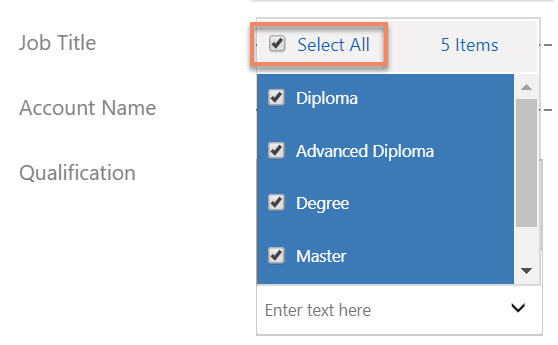
- Select All and Clear selection feature.
- Can leverage existing global option set.
How do we import using Excel Sheet?
- enter the values as semicolon separated.
Now let's import into CRM.
I hope this will help you to understand about Multi Select Option Set and Happy CRM-ing.
Subscribe to:
Posts (Atom)