Featured Post

Dynamics 365 - Business Process Flow and Things to take note before you upgrade into Dynamics 365.

In 2 months ago, my company decided to upgrade the Dynamics CRM 2016 into Dynamics 365 and there is something different about Dynamics 365 B...

Showing posts with label Dynamics 365 Business Process Flow. Show all posts

Monday, January 29, 2018

Dynamics 365 : Unrecognized Guid format


Recently, my client hit an error while opening a record, the form doesn't rendered anything, it totally a blank page.

After turn on the tracing, the log file show us a very weird error message "Unrecognized Guid format".

we search through everything, but unfortunately those solution didn't help us.

After that, we found out the similarity between the records, it is under a deactivated Business process flow. We tried to reactivated it, but it thrown us an error message.


It seems that there is something wrong with the BPF. So we decided to investigate deeply.


One of the step is missing, it became "Record" instead of the field we selected before. So after we choose back the correct field and save. The User is able to Open the record again.

Solution

- Remove the "Record field" or Choose a correct field.


I hope this will save you some time and Happy 365-ing.

Friday, November 10, 2017

Dynamics 365 - Thinking to trigger a workflow when switching a Business Process Flow? You better think twice :)

Before Dynamics 365, we can easily create a workflow and trigger it when user is switching a process by follow the below setting.


But With Dynamics 365, the behavior is very different from previous version.

Before we start the demo, i suggest you to read this article so that you have better understanding about the new BPF structure in Dynamics 365.

DEMO 

1. I will create an opportunity record.


2. Let's switch into another process


  •     The Modified on get updated.


  •     From the Audit History, Process ID, Stage ID and Traversed Path are working perfectly.


3. After few minutes, Let's switch back to first BPF.


  •     From the picture below, do you notice anything?


  •     Yes, no fields get updated anymore.   
  •     Even the BPF record stays where you created them.


DEMO 2

1. Now, i created 2 workflows and applied them into BPF.


2. Let's create an opportunity record.

  •     the description is updated.


2. Let's switch the process

  •   The description get updated too.


3. Let's switch back to first process
  • the description no longer get updated.


So, from the 2 demos above, do you realize anything?

  • once process is applied,
           - it will not trigger the workflow anymore.
           - it will not update the process id ,stage id and traversed path on entities anymore.
Conclusion
  • You should stop using Process id, Stage id and Traversed path on entities  because these fields will be deprecated soon.
  • You can refer the MSDN Article here.
I hope this will get you alert about this behavior and Happy CRM-ing

Thursday, November 9, 2017

Dynamics 365 - Using Save As to clone the Business Process Flow. Here is something you need to know

As a developer,  we need find a faster way to complete a task as soon as we can because sometime the timeline is really really tight.

But here is something you need to know, if you are going to use the Save As to clone a Business Process Flow (BPF).

Before we start the demo, i suggest you to read this article so that you have better understanding about the new BPF structure in Dynamics 365.

DEMO

1. Now let's clone a BPF by clicking on "Save As" button.


2. This is the result you are going to see.


3. I will continue the configuration by adding some fields or remove fields from the stages and click on Save and Activate.  How about the BPF name? It is okay , we can change it later.


4. After BPF is activated and from the picture below, do you notice something weird?

   
  •  Yes, the Display Name and Plural Name are grayed out. 
  •  It seems that BPF entity is different than other entities.


Solution

1. Create a solution and Add the particular entity into solution.


2. Export the Translation within the solution.


3. Extract the zip file and open up the Translations.xml.


4. Change the Display Name to the name you wanted and save the file.

5. Zip the [Content_Types].xml and CrmTranslations.xml.


6. Import the file by clicking on "Import Translations".


7. Click on Publish All Customization.

8. Refresh the form.

9. The name has been changed into Correct Name.


How do we prevent it ?

1. After click on "Save As" button in BPF.

2. Once the cloned BPF is generated, you can change the name anytime but make sure you do it before you activate the BPF.

Explanation 

This is because before the first activation of BPF, actually the BPF entity is not created yet . 


The BPF entity will be created after you clicked on "Activate" button.

Result after you clicked on Activate button


Lesson Learned

- Always change the name after you cloned the BPF so you don't get into trouble later.


I hope this will help you understand the behavior and save some time. Happy CRM-ing.

Sunday, October 29, 2017

Dynamics 365 - Workflow within a Business Process Flow

With Dynamics 365, You can now call on-demand workflows from inside a business process flow. But lets us take a look the differences between Dynamics 365 and before Dynamics 365.

Before Dynamics 365 

- we can trigger the workflow when Business Process Flow (BPF) is switched or Stage is changed.

With Dynamics 365 

- You can even manipulate more function using BPF designer.

- The workflows within the BPF are divided into two categories.


1. Stage Workflow

- Run within a stage.
- Can be triggered when Stage Entry and Stage Exit.


2. Global Workflow

- Can be triggered when Process Reactivated, Process Applied, Process Abandoned and Process Completed.


DEMO

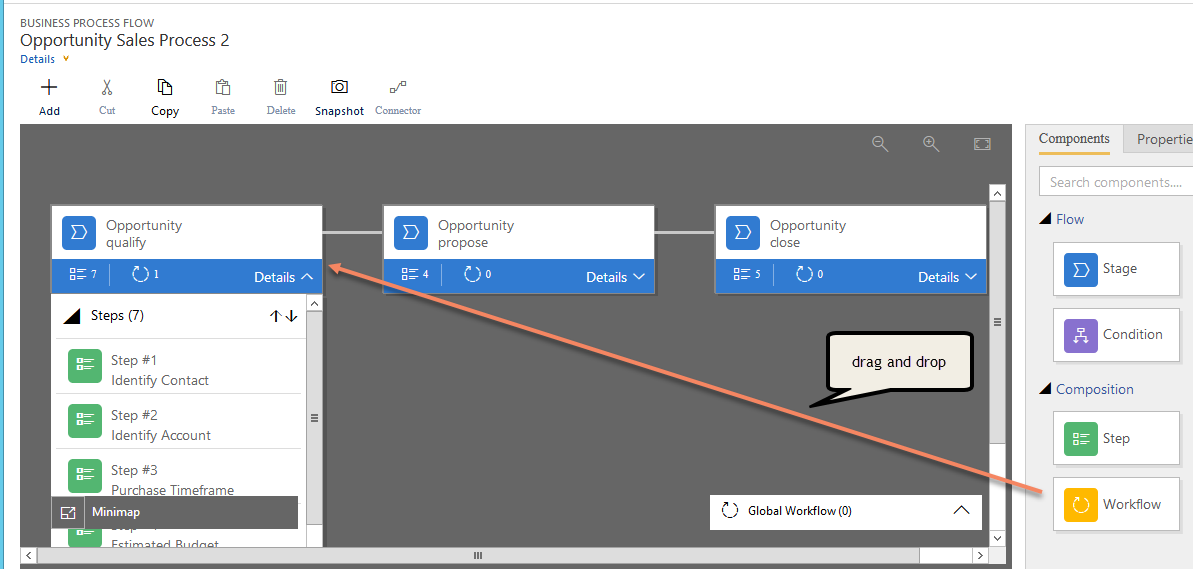
1. Drag the workflow into the stage.


2. Under the Stage, select the workflow component. After that select the trigger point as Stage Entry.


3. Create a Workflow.
  • Update opportunity description.
  • Workflow must set as on demand workflow. Else you will not able to see the workflow in BPF Designer.
  • In this demo, we will remove the trigger point from the workflow, so that we can understand more how is the workflow get trigger.


4. Repeat the Step 1 to Step 4, but remember to change the trigger point to Stage Exit. Final result as below.


5. Now let's create an opportunity. As the result shown as below , the description was updated as " Stage Entry".


6. Let's move to next stage.As the result shown as below , the description was updated as " Stage Exit".


7. Drag the workflow into the Global Workflow and Remove all the Stage workflow.
 
8. Create 4 workflows by repeating the Step 2 to Step 3. Final Result as below.


9. Now let's create an opportunity As the result shown as below , the description was updated as " Process Applied".

10 . Let's remove the description and switch the process to another BPF, and switch back, The description is not get updated.


11. Now let's finish the BPF. As the result shown as below , the description was updated as " Process Completed".


12 . Now let's reactivate the BPF. As the result shown as below , the description was updated as " Process Reactivated".


13. Now let's abandon the BPF. As the result shown as below , the description was updated as " Process Abandoned".


Now you should know, how the workflow get trigger when using the trigger point within BPF.
I hope this will help you to understand more about the new workflow feature within BPF in Dynamics 365 and Happy CRM-ing.

Saturday, October 28, 2017

Dynamics 365 - Hit error when trying move to previous stage


Every few months, we received such requirement  "management decided to remove one of the stage" again. But after delete the stage, an error pop up  when users were trying to move to previous stage.

Why is this happening ?

DEMO

In this demo,  the BPF has 4 stages ( Qualify,Develop, Propose and Close) and Management decided to delete the stage "Develop".

1. Delete the Stage "Develop" from BPF.
2. Current Stage is "Propose".


3. Everything seems fine. But where the time user is trying to move to previous stage, they hit an error and without much useful information provided.


Root Caused

The traversedPath is not correct. it seems that when we deleted the stage, the CRM system will not update the traversedPath.

Solution

  1. Access the BPF record via advanced Find 
  2. delete the invalid stage you deleted previously.
  3. Save It.


Tada (firework) User is able to move to previous stage after the Traversed Path is corrected.


Programtically using code

  1. First grab all the BPF records.
  2. Split the traversed path into single string into an array.
  3. Loop Through the string, and pass into the below query.
  4. if the result is 0.
  5. remove the stageid from Traversed Path and update it.

     private int CheckisstageExist(string stageid)
        {         
            var fetchxml = "<fetch version='1.0' output-format='xml-platform' mapping='logical'              distinct='false'>"+
                              "<entity name='processstage'>"+
                                "<attribute name='processstageid' />"+
                                "<attribute name='stagename' />"+
                                "<attribute name='stagename' />   "+     
                                "<filter type='and'>"+
                                  "<condition attribute='processstageid' operator='not-null' />"+
                                  "<condition attribute='processstageid' operator='eq' value = '"+stageid+"'  />" +
                                "</filter>  "+
                              "</entity>" +
                            "</fetch>";

            EntityCollection result = m_service.RetrieveMultiple(new FetchExpression(fetchxml));

            return result.Entities.Count;
            
        }


I hope this will help you to save some time and Happy CRM-ing.


Dynamics 365 - Business Process Flow and Things to take note before you upgrade into Dynamics 365.

In 2 months ago, my company decided to upgrade the Dynamics CRM 2016 into Dynamics 365 and there is something different about Dynamics 365 Business Process Flows and here are what you need to know so that you don't get trouble when it is your turn.

Before VS Now

Before

Previously when a BPF was started, all the information regarding the BPF was stored within the record itself.

1. ProcessId

  •    ID of BPF


2. StageId

  •    The ID of the BPF that was active.


3. TravesedPath

  •     A comma separated string listing the GUIDs of curret path (StageId) of steps taken through the  BPF. 


Now

With Dynamics 365, the Business Process Flows (BPFs) are now created as Entity and stored as entity records. Instance details are no longer held as fields on the associated record.


  1. Active Stage Id                
    - The ID of the BPF step that is active.
  2. Activate Stage Started On
    - The Date Time that the current step was started on.
  3. State & Status                  
    - Each BPF Instance has its own state that allows finishing and   abandoning before other BPF are run.
  4. Process
    - The ID of the BPF.


BPFs Privilege

In Previous Version of CRM,  you have controlled which roles could access your BPF by clicking "Enable Security Role".

With Dynamics 365 , it has more flexibility to deal with security role.


Workflow within Business Process Flow

With Dynamics 365, you now able to attached workflow within Business Process Flow.


Parallel Business Process Flows

As parallel business feature is introduced in Dynamics 365,  users are allowed to work in same record with different Business Process Flows (BPFs) at the same time and the good news is switching BPFs no longer overwrites the previous active step , meaning that when you switch back to a precious started BPF and it will stay where you left them.

DEMO 


Now we created a record using User 1. As from the below picture, the BPF is using Opportunity Sale Process.

 Now opened the record as another user. The record shown as Opportunity Sales Process also.


Now we switched the process into Opportunity Sales Process 2 using another User.

The user who switched the process see Opportunity Sales Process 2

But, how about the User 1? The answer is Opportunity Sales Process.

oh.. By the way you can identify the BPF through here


Things to ask yourself and discuss with management before upgrade into Dynamics 365.

Is your company ready for this?

  • please discuss with your management regarding this changes especially the parallel BPF feature.
No, my company does not want parallel BPF feature, are we able to turn off this feature?

  • The answer is "No" !!!
is there any alternative ways to manipulate the parallel behavior ?

  • The answer is "Yes" , but not a perfect solution at this moment.

Alternative Solution 
1. Create a plugin, under pre-validate stage, loop through the user, and run the context of user and switch the process programatically
  • but what if your company has thousand of users ? which causing extremely slowness on performance as well as time consuming.
  • Not recommended.

2. Create a plugin or workflow activity, trigger when user switch the process and check is there any other BPFs is running? if yes , delete them. But...

  • you are no longer have the ability to switch to previous started BPF with correct stage. meaning it always go back to first stage.
3. Make sure your user abandon the process before switching to another process. When another user open the record and seeing the abandoned process, they should switch to the newly started active BPF.


  • more clicks and most likely user will not take this solution into account.


Maybe there are more workarounds, but at the mean time my team and I only can think of these solutions . 

I hope this will help you to understand more about the new BPF feature in Dynamics 365 and Happy CRM-ing.